Most readers have two reading lives. The books on their shelves at home, and the books on their Goodreads or StoryGraph profile. These two lists rarely match, because adding books one by one is a chore most people never finish.
TropeQuest has a faster way. One photo, and your entire shelf is imported automatically.
How to scan your bookshelf
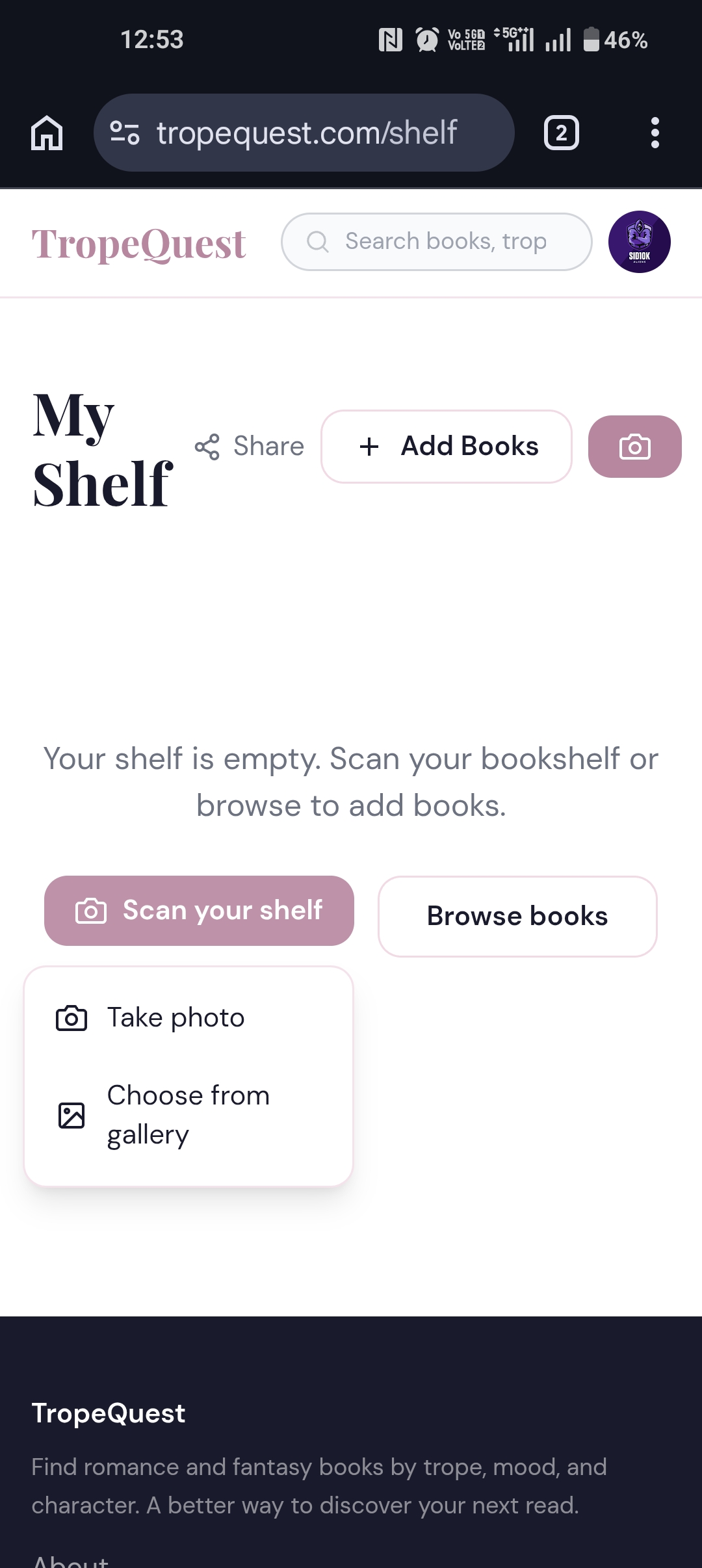
Step 1 — Open My Shelf and tap the camera. Go to My Shelf → and sign in if prompted. Tap the pink camera button in the top right, or the Scan your shelf button on an empty shelf. Choose Take photo or Choose from gallery.
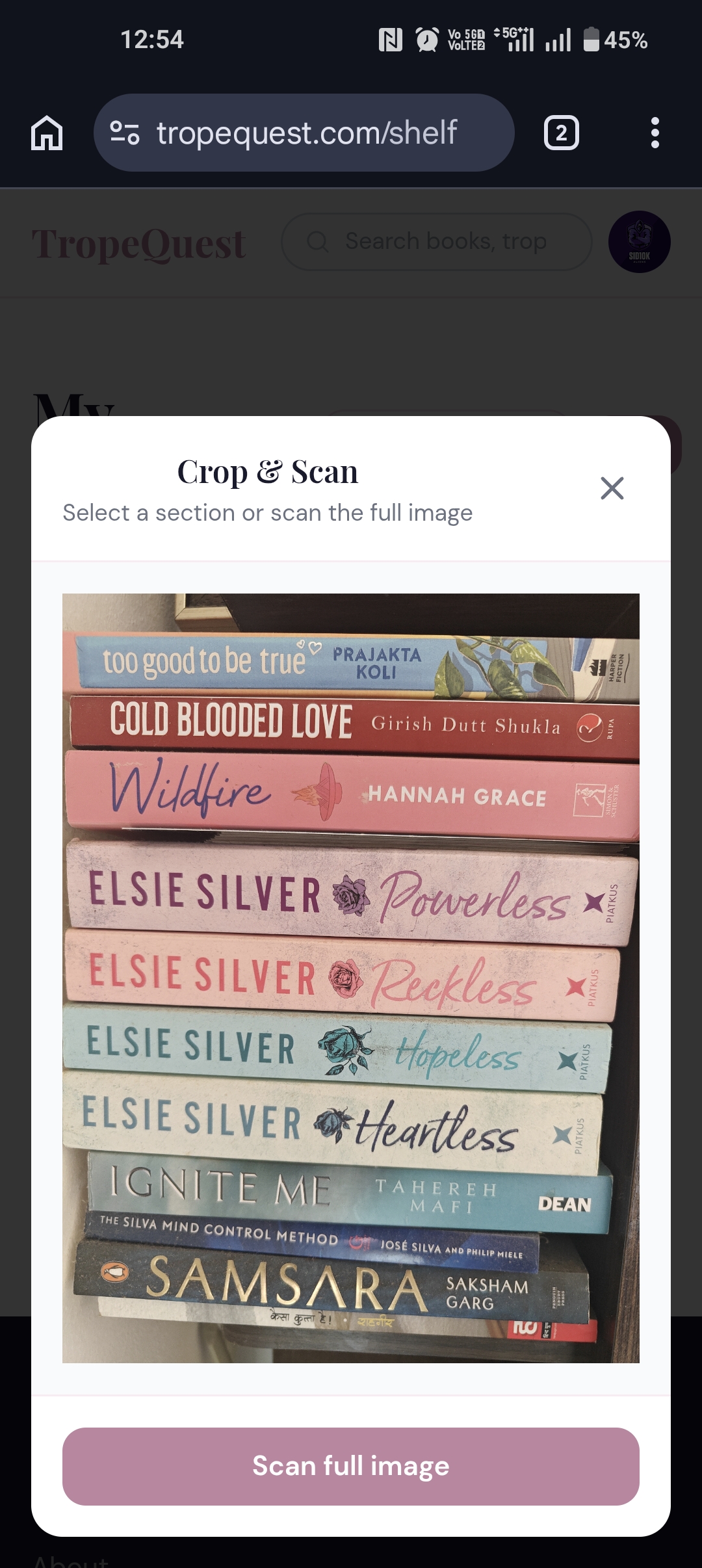
Step 2 — Take a photo and crop. Point your phone at a shelf and take the photo. TropeQuest shows a Crop & Scan screen where you can drag to select a section, or tap Scan full image to process everything at once.
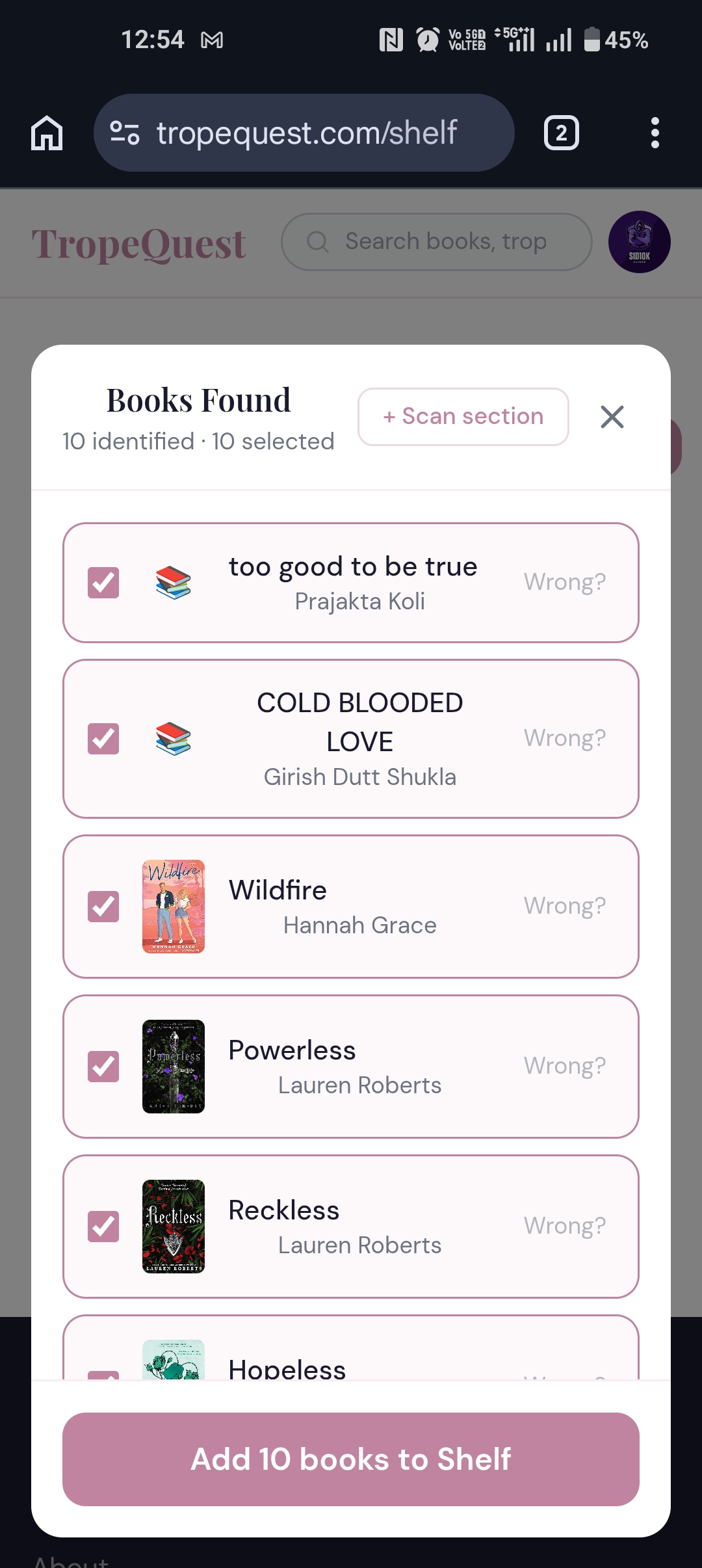
Step 3 — Review the detected books. TropeQuest reads the spines and shows a Books Found list with title, author, and cover for each one it identified. Every book is ticked by default. Tap Wrong? next to any misidentified book to swap it, or + Scan section to scan more of the shelf. When ready, tap Add N books to Shelf.
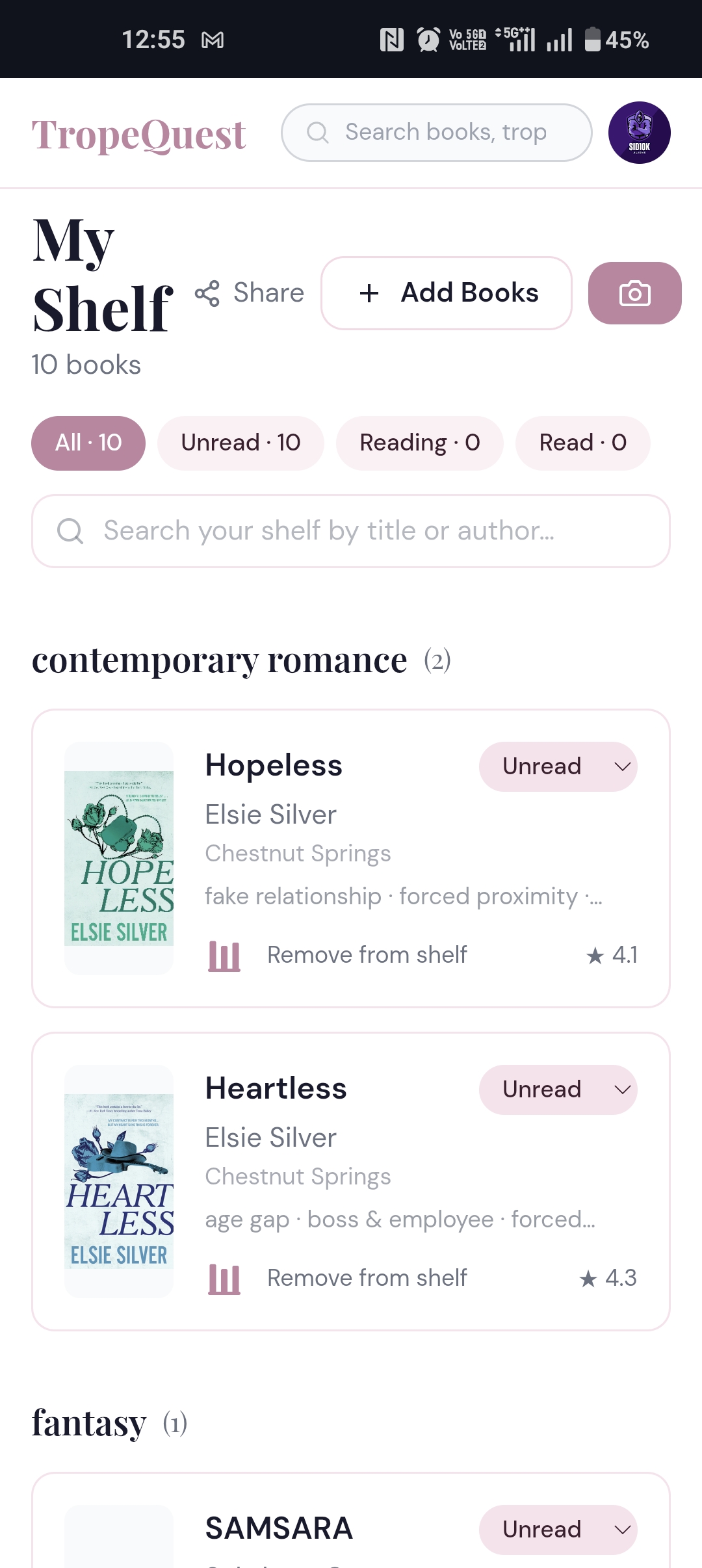
Step 4 — Your shelf is ready. All confirmed books land instantly, grouped by genre, each with a status of Unread. Filter by All, Unread, Reading, or Read at the top.
What you get after the scan
Your shelf is fully searchable and filterable by genre, status, or title. Update any book's status to Reading or Read as you go.
Because every book in TropeQuest is tagged with tropes, your scanned books connect directly to the discovery features — find what is similar to books you already own, see the next book in a series, or explore by the tropes you love most.
If a book is not recognised
Occasionally a spine is angled, worn, or too small to read clearly. The search bar on the shelf page lets you add it manually in seconds. Tap + Scan section on the results screen to scan another part of the shelf without starting over.
Where to find it
Go to My Shelf → and tap the camera icon. You will need to be signed in.
If you have not made an account yet, it is free. Sign up here →